The Ultimate
Smart Home Experience.
Control your lights and fans with zero noise. Works seamlessly with or without internet.
NEXT GEN SMART HOME
Control your lights and fans with zero noise. Works seamlessly with or without internet.
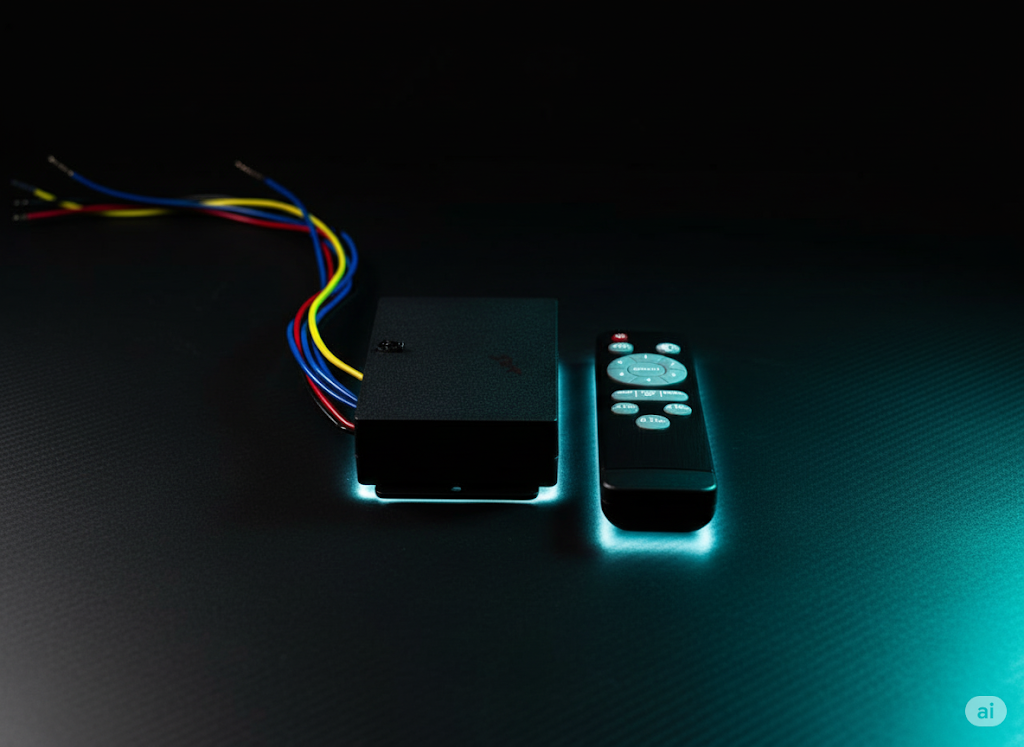
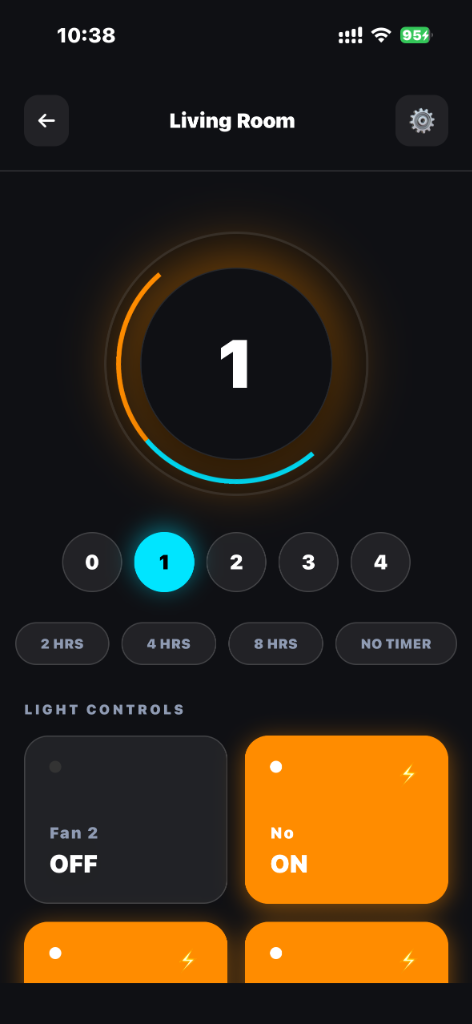
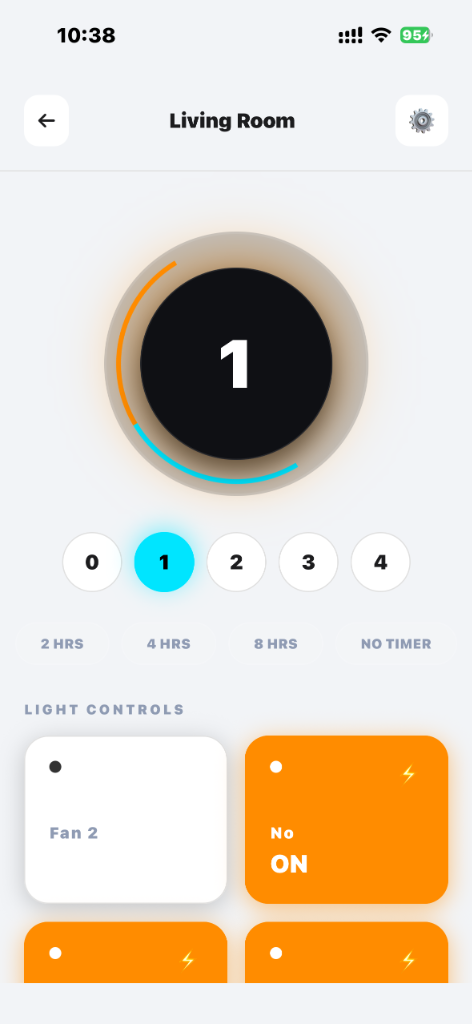
We specialize in smart home automation and digital electronics products that enable effortless control of everyday home applications. Our solutions are designed to enhance comfort, safety, and energy efficiency—making technology work seamlessly for you.
To make smart technology simple, accessible, and dependable, empowering users to experience convenience without complexity.
To be a trusted name in smart electronics and home automation, driving innovation that improves everyday living.
Simple. Reliable. Intelligent.
Works perfectly with both Android & iOS. Control your home from anywhere in the world.
Enjoy absolute silence. Our advanced technology regulates fan speed without any humming noise.
Internet down? No problem. Your physical wall switches and IR Remote work 100% offline.
Set the perfect mood instantly.
Everything you need in one smart device.
4 Lights + 1 Fan with variable speed control
iOS & Android compatible smart control
Physical switches & IR remote always work
Advanced regulation - zero humming noise
Replace existing board in minutes
Auto-resume memory & overload protection
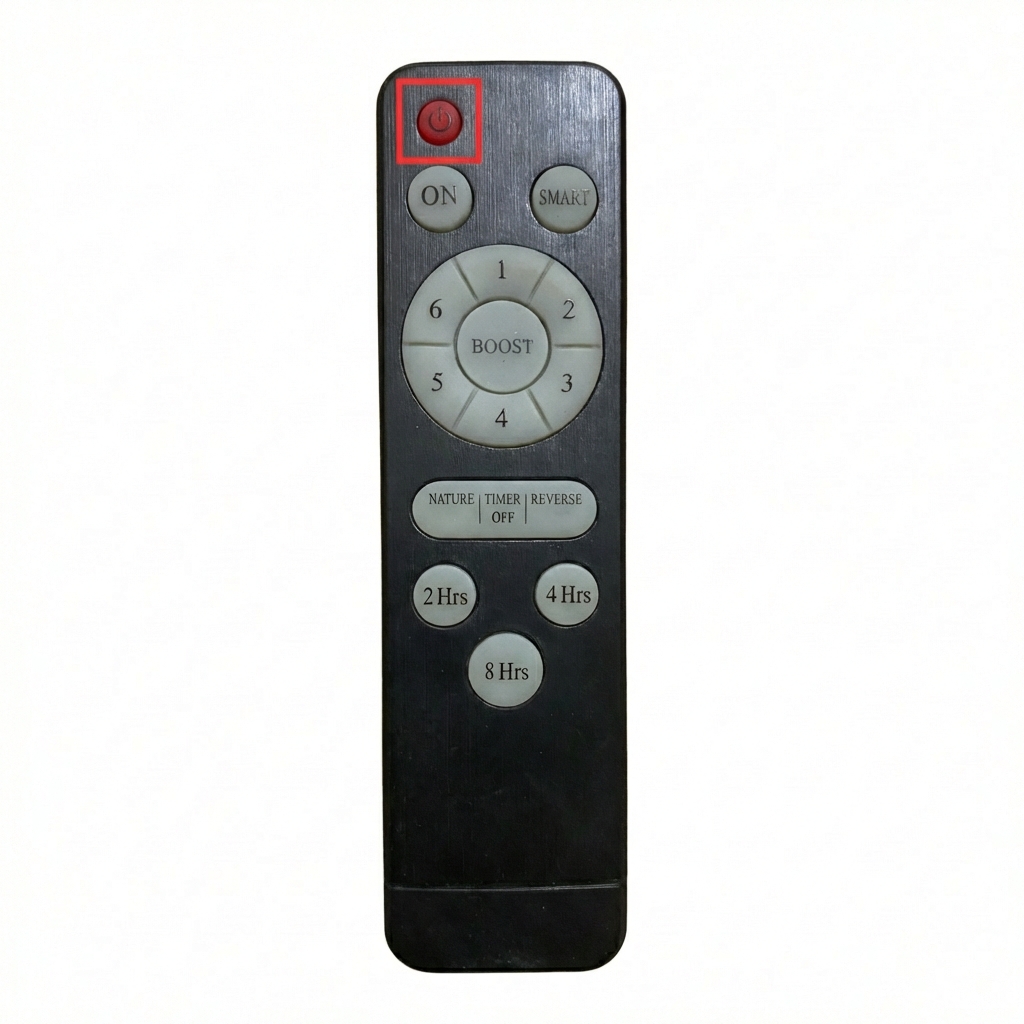
Reset Device: Press the Red button 4-5 times continuously within 2 seconds of the Remote. Open App: Click on the ICON downloaded from Play Store/website, open the app,
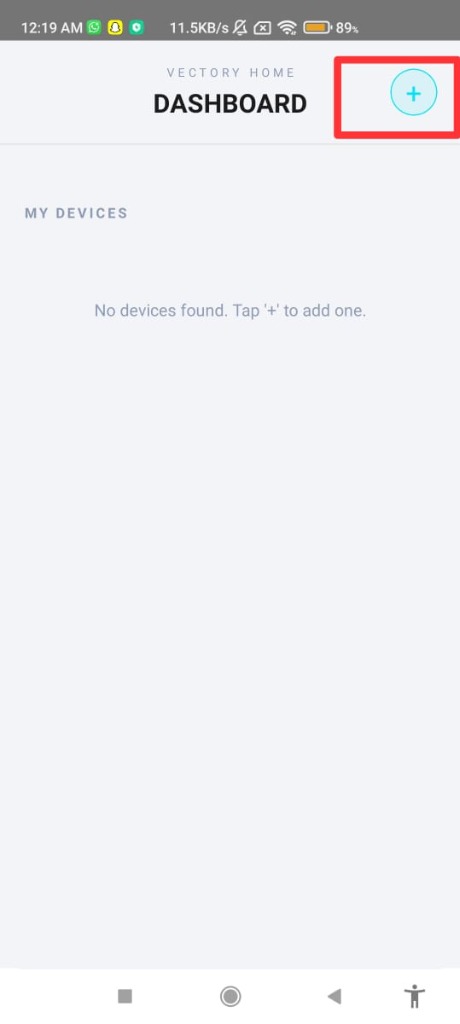
click on ➕️ to add a new device.
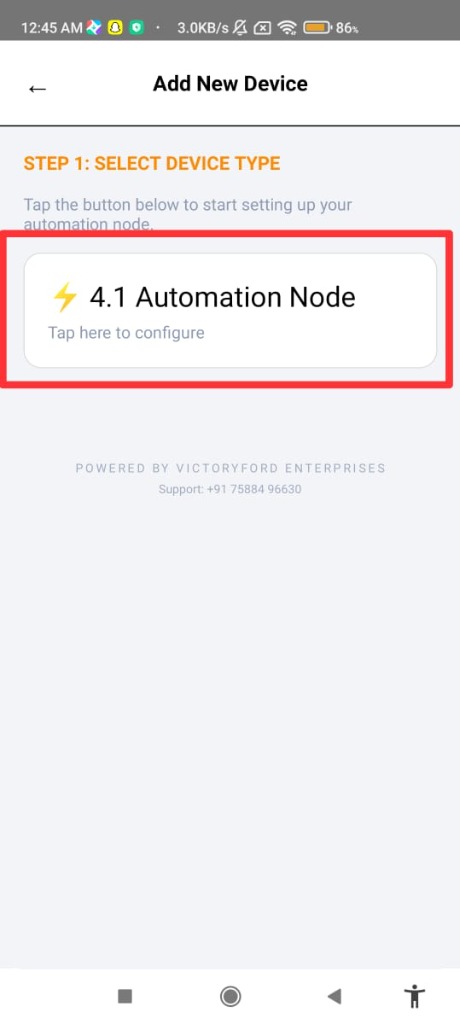
Automation Node: Click on 4.1 automation node (step 1).
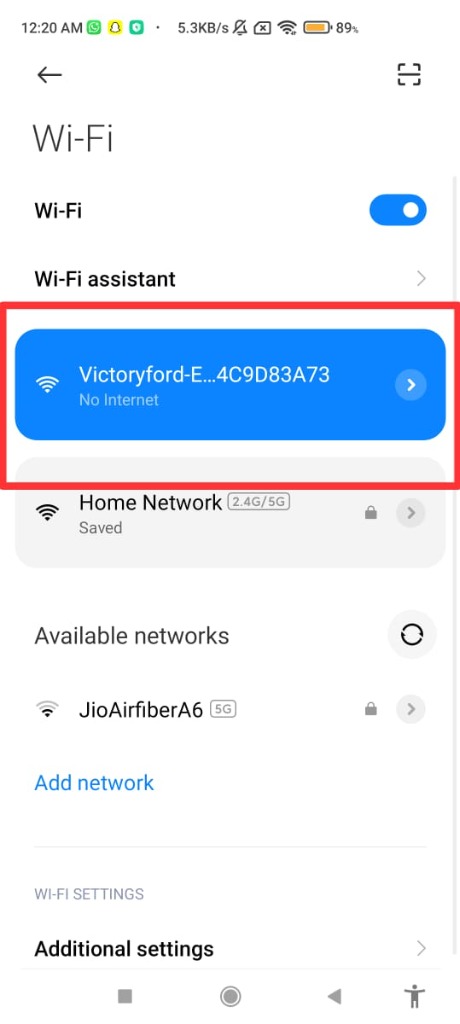
go to Wi-Fi settings, select "Victoryford device", and enable "Always Connect" (step 2).
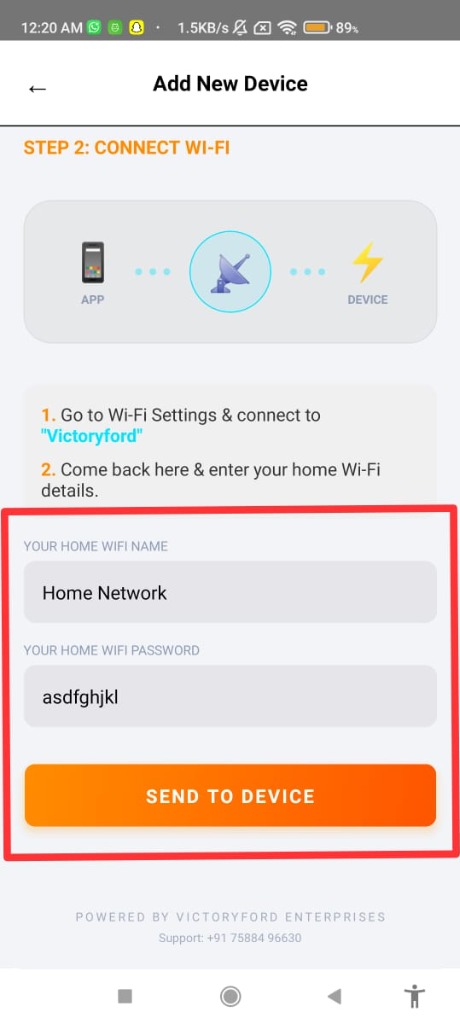
Wi-Fi Setup: Enter Wi-Fi name and password.
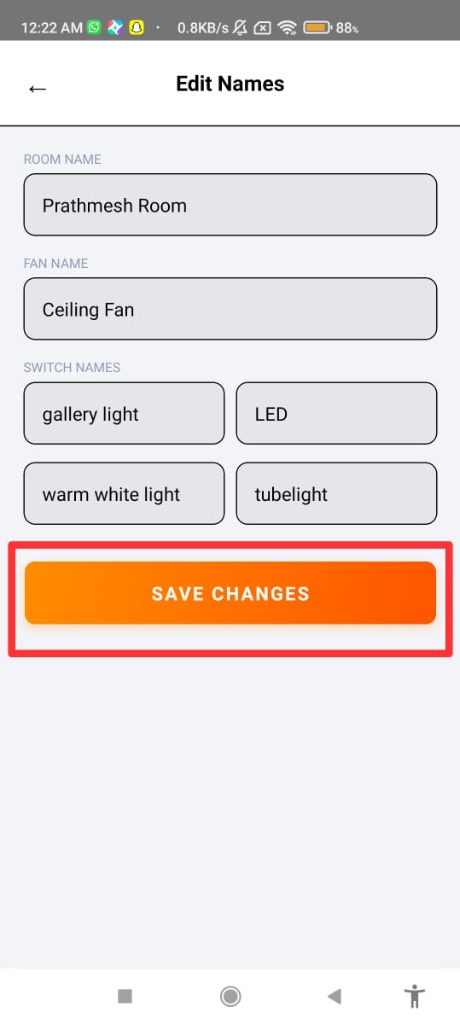
Device Setup: Edit the device name as desired.
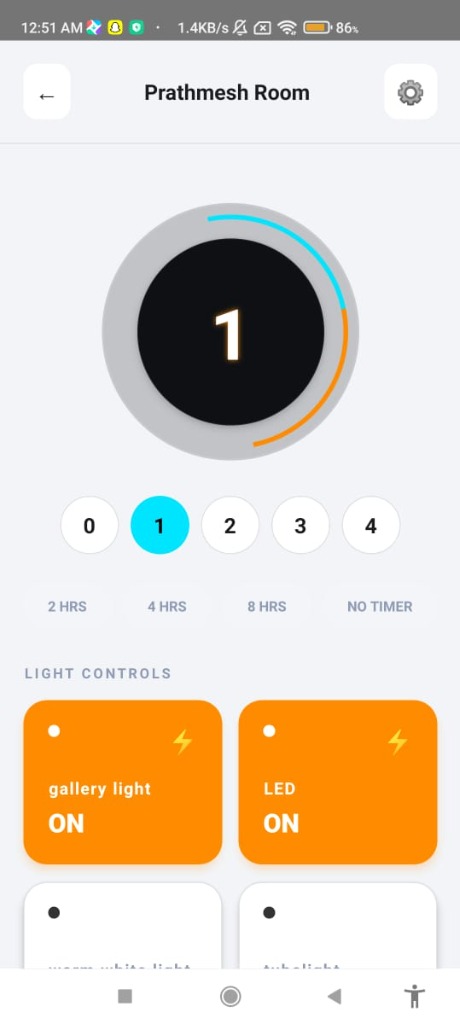
Congratulations, the device is online and ready to use.
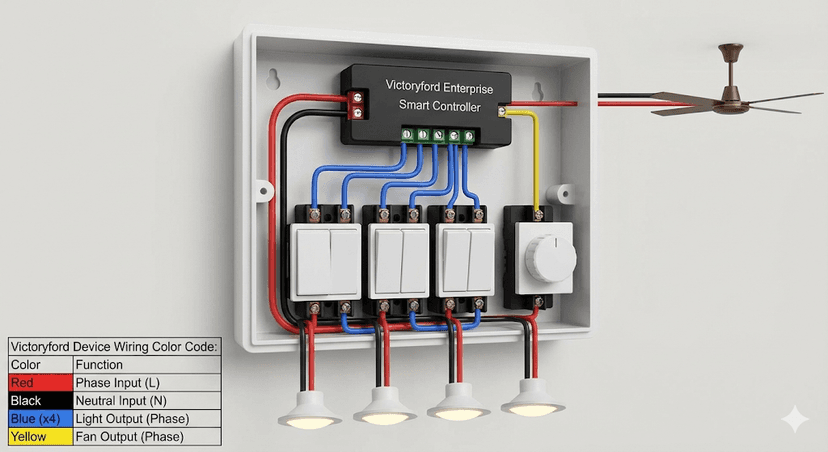
| Wire Color | Function |
|---|---|
| Red | Phase Input (L) |
| Black | Neutral Input (N) |
| Blue (×4) | Light Output (Phase) |
| Yellow | Fan Output (Phase) |
Control via Mobile App or the included IR Remote.